> For the complete documentation index, see [llms.txt](https://docs.workfx.ai/llms.txt). Markdown versions of documentation pages are available by appending `.md` to page URLs; this page is available as [Markdown](https://docs.workfx.ai/workfx-1.1.x-english/workforce-factory/agent/flow-tools.md).
# Flow Tools
## Introduction
**Flow Tools** are tools used to build and manage intelligent agent workflows, allowing developers to define multi-step task processes through visual interfaces or code. These workflows can include calling external APIs, processing data, executing logical decisions, and more, ultimately forming a complete automated task chain.
* **Visual Workflow Design**: Users can intuitively design each step and logic of the workflow via a drag-and-drop interface.
* **Multi-step Task Chains**: Supports defining multiple sequential or parallel task steps to implement complex business logic.
## Create a Flow Tool
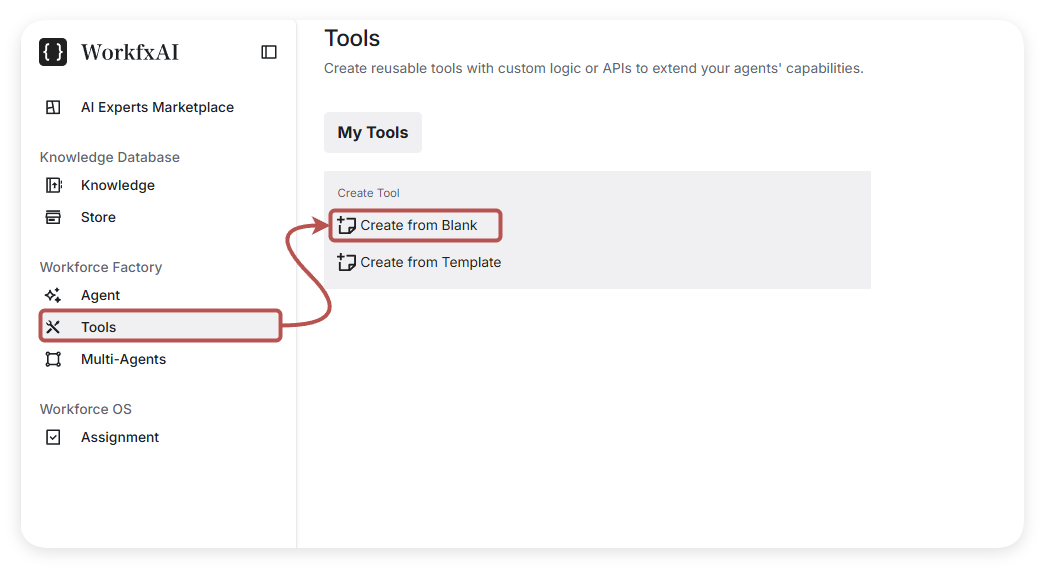
First, select the **Tool** panel. Here, you can choose either **Create From Blank** or **Create From Template**. In this example, we’ll go with the first option — **Create From Blank**.
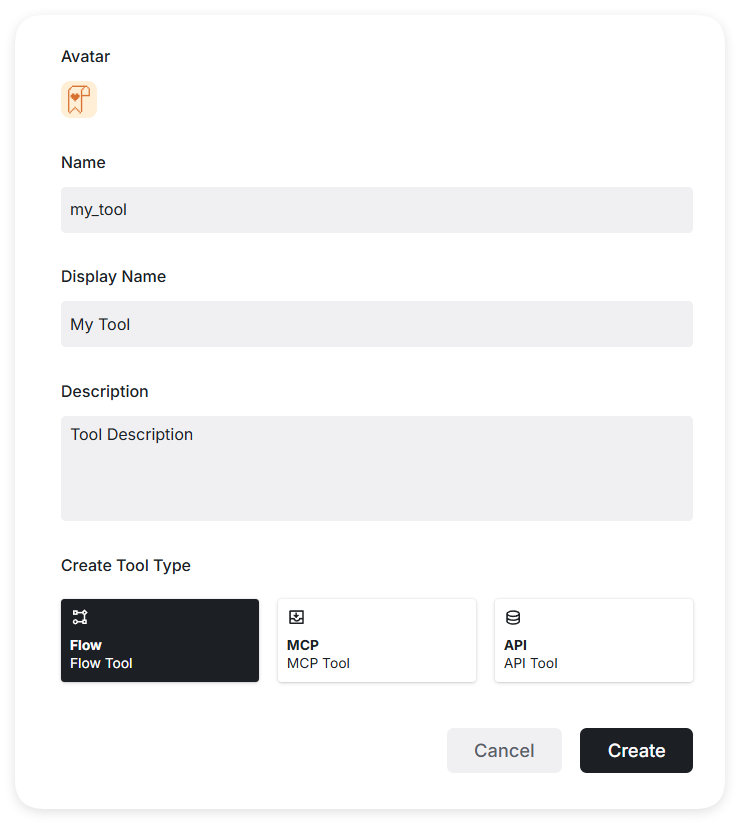
After clicking **Create**, you will be redirected to the **Tool Creation Panel**, where you need to configure the following information:
* **Avatar**\
The icon or image representing your tool. This helps visually identify the tool in the interface.
* **Name**\
The internal name of the tool. **Tool name can only contain letters, numbers, and underscores** (e.g., `my_custom_tool`). This name is used programmatically and must follow naming rules.
* **Display Name**\
The name shown to users, such as when the tool is used by an agent. **There are no restrictions on characters**, so you can use spaces, symbols, or non-English characters if needed (e.g., `My Custom Tool`).
* **Description**\
A brief explanation of what the tool does. This helps others (and yourself) understand the purpose of the tool at a glance.
* **Create Tool Type**\
Choose the type of tool to create.
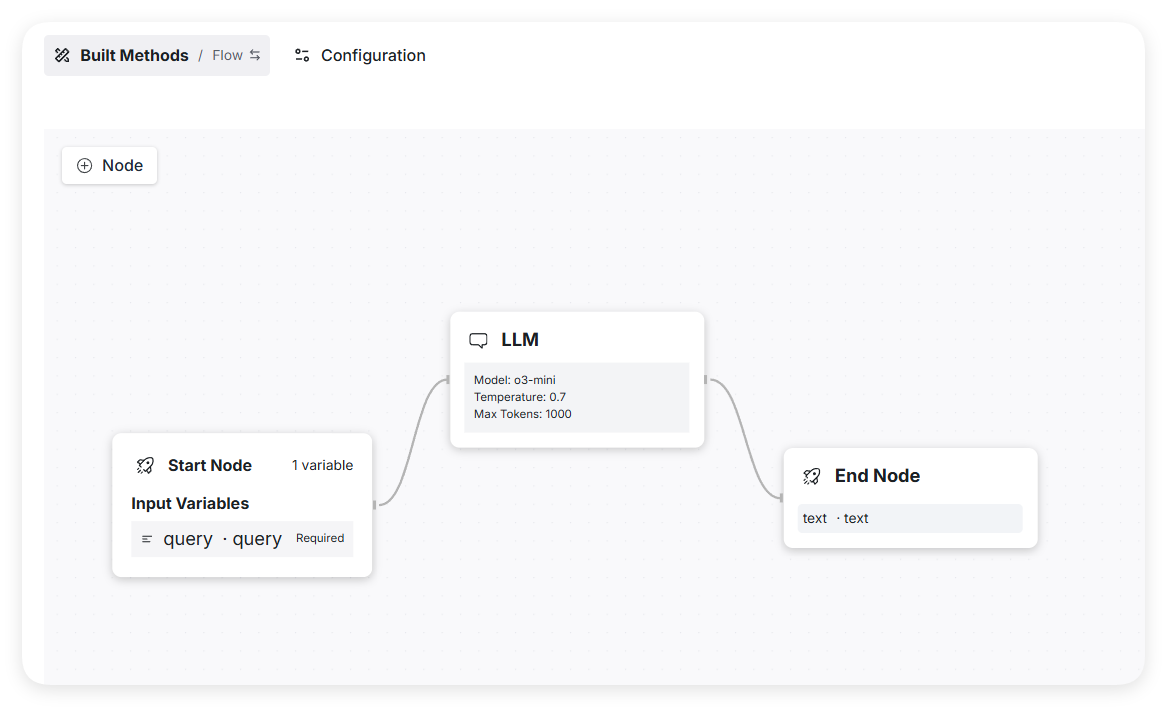
After clicking **Create** in the creation panel, you will be redirected to the **Flow Tool Orchestration** panel. Here, you can customize your tool using a variety of powerful nodes—almost the same as in AgentFlow.
## Flow Tool Example
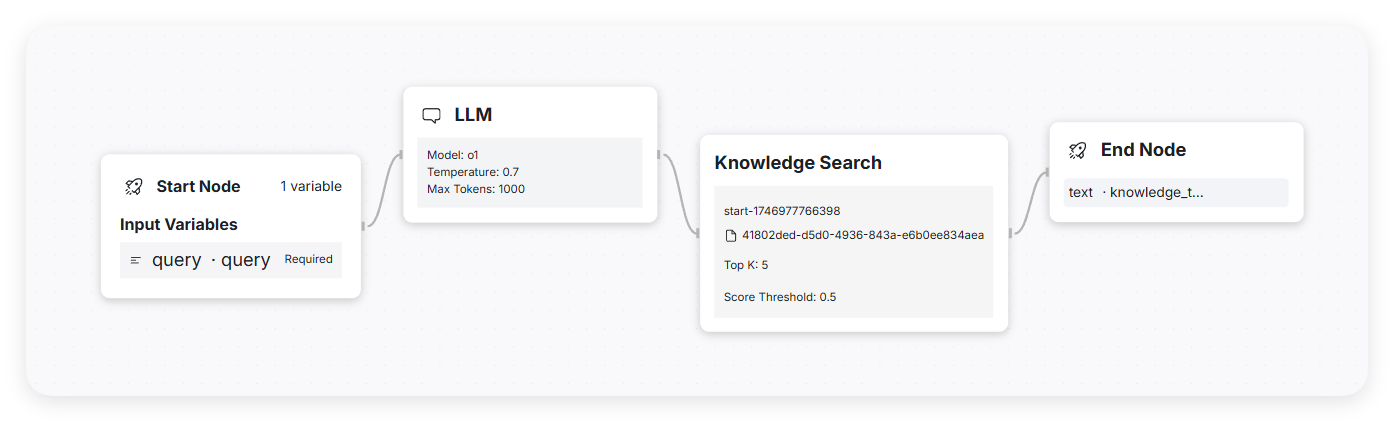
The following presents a simplified **Enhanced Knowledge Search Flow Tool** along with its implementation method. This tool
This flow tool, aside from the start and end nodes, uses only two core components:
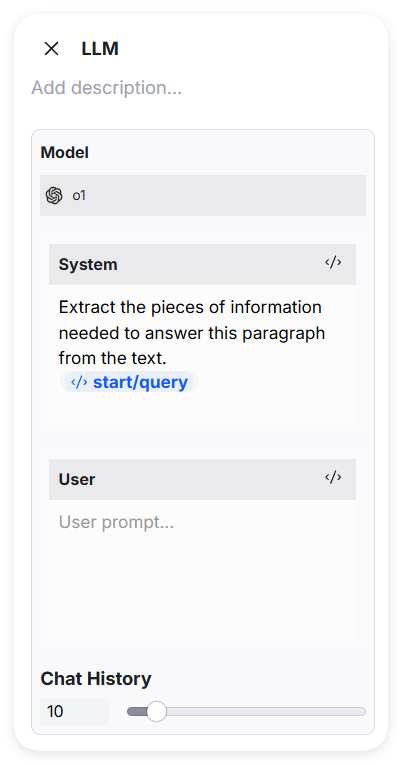
An LLM node for extracting the query, and a knowledge search node for retrieving information from the WorkFX
The configuration of the LLM node is shown above. Users are free to customize it to enable more complex functionalities; this setup is for demonstration purposes only. The blue text indicates a reference to the query from the start node, which serves as the default input for the tool.
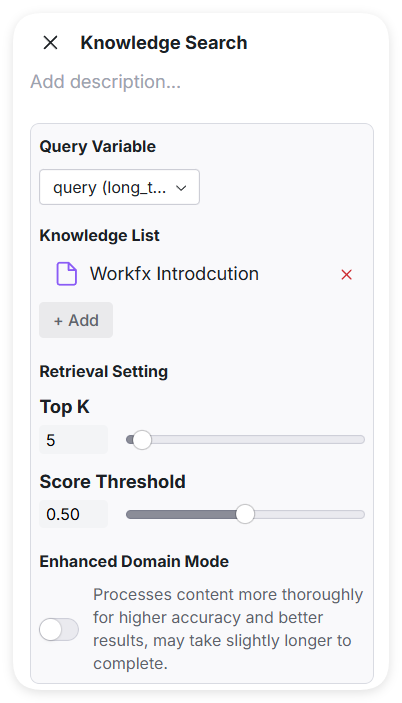
The configuration of the Knowledge Search node includes the following:
* **Knowledge Selection**: Choose one or more knowledge sources to define the search scope. In this example, the *WorkFX* introduction document is selected.
* **Search Parameters**: Configure the following parameters:
* **TopK**: Specifies the number of top relevant results to return.
* **Score Threshold**: Sets the minimum relevance score required for results to be considered.
* **Enhanced Domain Mode**:
* Optional feature;
* Improves retrieval performance when enabled;
* May result in slower responses and higher computational cost;
* Not enabled in this example.
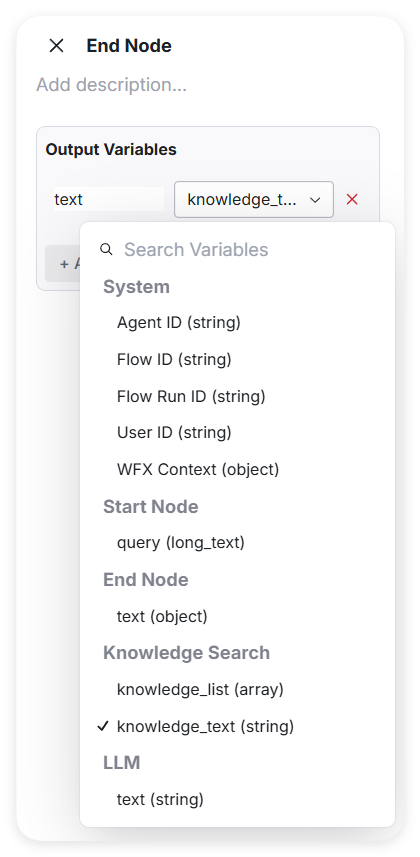
In the End Node, select the `text` output from the **Knowledge Search node** as the final output
* This will pass the retrieved text to the user or downstream processes.
---
# Agent Instructions
This documentation is published with GitBook. GitBook is the documentation platform designed so that both humans and AI agents can read, navigate, and reason over technical content effectively. Learn more at gitbook.com.
## Querying This Documentation
If you need additional information that is not directly available in this page, you can query the documentation dynamically by asking a question.
Perform an HTTP GET request on the current page URL with the `ask` query parameter, and the optional `goal` query parameter:
```
GET https://docs.workfx.ai/workfx-1.1.x-english/workforce-factory/agent/flow-tools.md?ask=&goal=
```
`ask` is the immediate question: it should be specific, self-contained, and written in natural language.
`goal` is optional and describes the broader end goal you are ultimately trying to accomplish on behalf of the user. GitBook uses it to tailor the answer towards what is most useful for that goal.
The response will contain a direct answer to the question and relevant excerpts and sources from the documentation.
Use this mechanism when the answer is not explicitly present in the current page, you need clarification or additional context, or you want to retrieve related documentation sections.